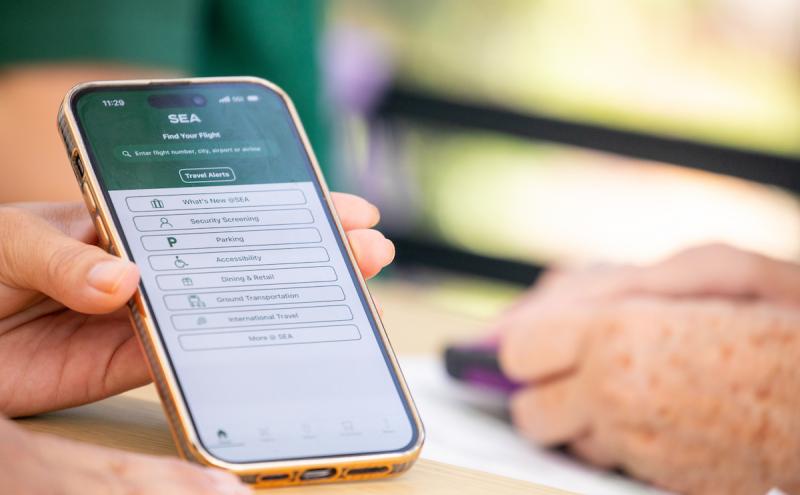
How to download the FlySEA App for iOS: 
- Open the Apple App Store and go to the search bar.
- Type in “flySEA” OR Download FlySEA App for IOS
How to download the FlySEA App for Android:
- Open the Google Play Store and go to the search bar.
- Type in “flySEA” OR Download FlySEA App for Android
- You will see the SEA Airport App logo and hit the “GET” button next to it
- Your app will be downloaded on your homepage!
Make sure that when you open the app for the first time you select the ALWAYS ALLOW option in order to get all push notifications related to your flight and directions.
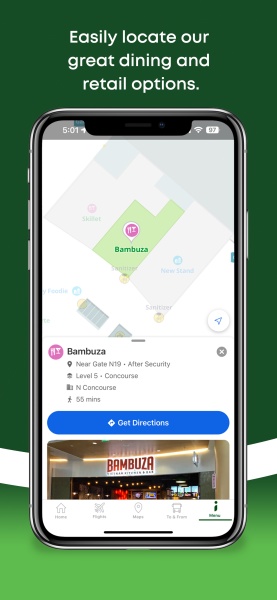
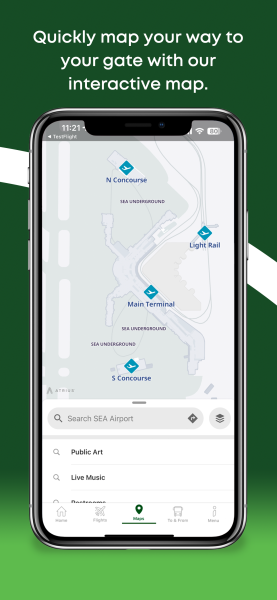
How to Use the SEA Airport Interactive Map
- Use the Search bar under MAPS
- Type in any (or more) of the following:
- Name (of restaurant or retailer)
- Food Type or Genre
- Amenities
- Point of Interest
- To browse select LEVELS, to realign your location select MY LOCATION, to get directions to where you want to go hit DIRECTIONS.
- Hit the DIRECTIONS button, use your current location and select GO in the top right-hand corner and you will be guided on a route to your destination.
How to Search and Get Notified for Flights
- Use the Search bar under HOME or FLIGHTS
- Select DEPARTURES, ARRIVALS or ALL
- Type in any of the following:
- Airline (Code or Full Name)
- Flight number
- City
- Airport
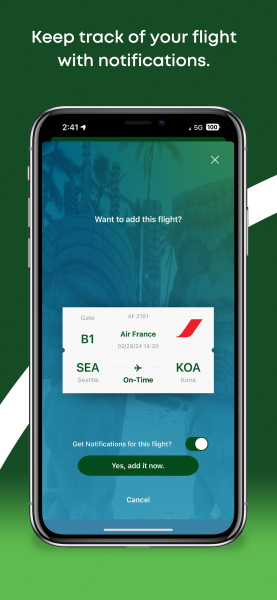
- Once you have found the flight or flights you want to track, tap it to bring up the information and menu.
- You will be asked if you want to ADD THIS FLIGHT, the notifications are automatically selected this can be toggled on and off by tapping the slider.
- To confirm press “YES, ADD IT NOW” and the flight card you logged will be on your app’s home.
- Tap on the flight card on the HOME page for more information, to remove the flight and its notifications and to get directions to baggage claim.
- Repeat the same process to add another flight. You can swipe left and right between multiple flight cards on the home page of the app.